Tuesday, 20 January 2015

Why does application close after each test in Coded UI Test


In Coded UI, a flag CloseOnPlaybackCleanup is added to ApplicationUnderTest class. 
For cases where an application is launched during test run, this flag helps determine whether to close the application under test after test is over.  Default value for the flag was set to true (closes the application) as it is not advisable to re-use resources from other test cases. 
This works fine for Visual Studio 2012 and later versions. Users will see  BrowserWindow / ApplicationUnderTest is getting closed after each test case if they don't have CloseOnPlaybackCleanup flag set to false. 
 If you want to reuse any application instance launched in another test case, you have to assign CloseOnPlaybackCleanup flag to false for ApplicationUnderTest / BrowserWindow object.
Please refer to sample code as below. If you run all these three tests together, BrowserWindow will be launched only once, remaining other tests will use existing browser instance from the previous test. If you run each test individually, then each test case will close the browser at the end of the run.

public class CodedUITest1
    {
        public CodedUITest1()
        {
        }

        [TestMethod]
        public void CodedUITestMethod1()
        {
           LoadLocalHost();
        }

        [TestMethod]
        public void CodedUITestMethod2()
        {
            LoadLocalHost();
        }

        [TestMethod]
        public void CodedUITestMethod3()
        {
            LoadLocalHost();
        }


        static BrowserWindow browserWindowInstance = null;

        public void LoadLocalHost()
        {
            if (browserWindowInstance == null)
            {
                browserWindowInstance = BrowserWindow.Launch(new System.Uri("http://google.com/"));
                browserWindowInstance.CloseOnPlaybackCleanup = false;
                browserWindowInstance.Maximized = !browserWindowInstance.Maximized;
            }
            else
            {
                browserWindowInstance.Maximized = !browserWindowInstance.Maximized;
            }
        }
}     

The same principle is applied with running tests using Command Line. If you are running tests altogether, the Application Under test will remain open in between tests in case CloseOnPlaybackCleanup is set to false. Once the run is over, all application instances which were launched during the run are closed.

Searching a UI Test Control with an invalid property


What if we give an invalid property as the Search/Filter property

For Web technology,
  • If an invalid SearchProperty is used to Find a UITestControl, it will throw UITestControlNotFoundException. 
e.g:- If you searched for the search edit box in google.com using a InvalidSearchProperty,
this.mUISearchEdit.SearchProperties["InvalidSearchProperty"] = "foo-bar";
you would get the UITestControlNotFoundException

  • If an invalid FilterProperty is used to Find a UITestControl, it will be ignored.
e.g:- If you searched for the search edit box in google.com using a InvalidFilterProperty,
this.mUISearchEdit.FilterProperties["InvalidFilterProperty"] = "foo-bar";
you would succeed in locating the edit box and performing operations performed on it.

For MSAA & UIA technologies,
  • If an invalid SearchProperty is used to Find a UITestControl, it will throw an ArgumentException
e.g:- If you searched for the button ‘6’ in the calculator using a InvalidSearchProperty
this.mUIItem6Button.SearchProperties["InvalidSearchProperty"] = "foo-bar";
you would get the following exception.
System.ArgumentException: The property InvalidSearchProperty is not a valid search property.
  • FilterProperties are not supported. If you specify FilterProperties for a WinForms or WPF control,  you will get the following message.
System.ArgumentException: Filter properties are not supported by the following technology: MSAA. To search for a control, you must remove the filter properties.
NOTE also for all technologies,
  • If an invalid Property is used in GetProperty/SetProperty, it will throw a NotSupportedException.

Monday, 19 January 2015

How to add all controls on a page to the UIMap


This blog says how to add all controls on a page to the UI Map. This can be done with the following code.
Here I am adding all controls on the bing start page to the specified ui test file.

First create a UITest object from a file(i.e. empty UITest file).
You can add an empty UI Test file to your Test Project by right clicking on the Test Project and choosing Add –> New Item –> Coded UI Test Map.
UITest uiTest = UITest.Create(uiTestFileName);

The below 3 lines create a new UIMap object and adds it to UITest object
Microsoft.VisualStudio.TestTools.UITest.Common.UIMap.UIMap newMap = new Microsoft.VisualStudio.TestTools.UITest.Common.UIMap.UIMap();
newMap.Id = "UIMap";
uiTest.Maps.Add(newMap);

Now launch the browser, navigates to google.com and passes a reference to the browser & the UIMap object to GetAllChildren method. 
GetAllChildren(BrowserWindow.Launch(new Uri("http://bing.com")), uiTest.Maps[0];);
GetAllChildren is a method which recursively gets the children of the browser object and adds them to the UIMap.

The whole code

public void AddControlsToUIMap()
        {
string uiTestFileName = @"<LOCATION>\TestProject\UIMap.uitest";
UITest uiTest = UITest.Create(uiTestFileName);
Microsoft.VisualStudio.TestTools.UITest.Common.UIMap.UIMap newMap = new Microsoft.VisualStudio.TestTools.UITest.Common.UIMap.UIMap();
newMap.Id = "UIMap";
uiTest.Maps.Add(newMap);

GetAllChildren(BrowserWindow.Launch(new Uri("http://google.com/")), uiTest.Maps[0];);
             uiTest.Save(uiTestFileName);
        }

private void GetAllChildren(UITestControl uiTestControl, Microsoft.VisualStudio.TestTools.UITest.Common.UIMap.UIMap map)
        {
foreach (UITestControl child in uiTestControl.GetChildren())
            {
                map.AddUIObject((IUITechnologyElement)child.GetProperty(UITestControl.PropertyNames.UITechnologyElement));
                GetAllChildren(child, map);
            }
        }

You can now customize the code based on your need. 

If you wanted to add the Childrens of specific type, instead of GetChildren, you can use FindMatchingControls

Wednesday, 17 December 2014

How to schedule Microsoft coded UI test execution without microsoft TFS

  1. Create a release of stable coded UI project by following steps
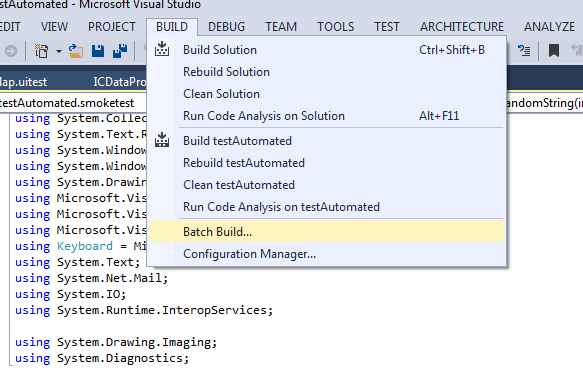
  1. Open  Build > Batch build
  1. Click rebuild if a release was already built


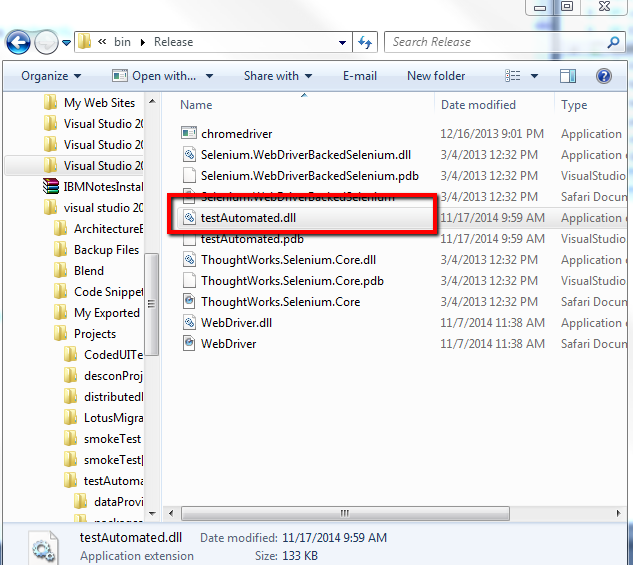
  1. After successfully building coded UI project navigate to release folder of project and copy testAutomated.dll named with your project name
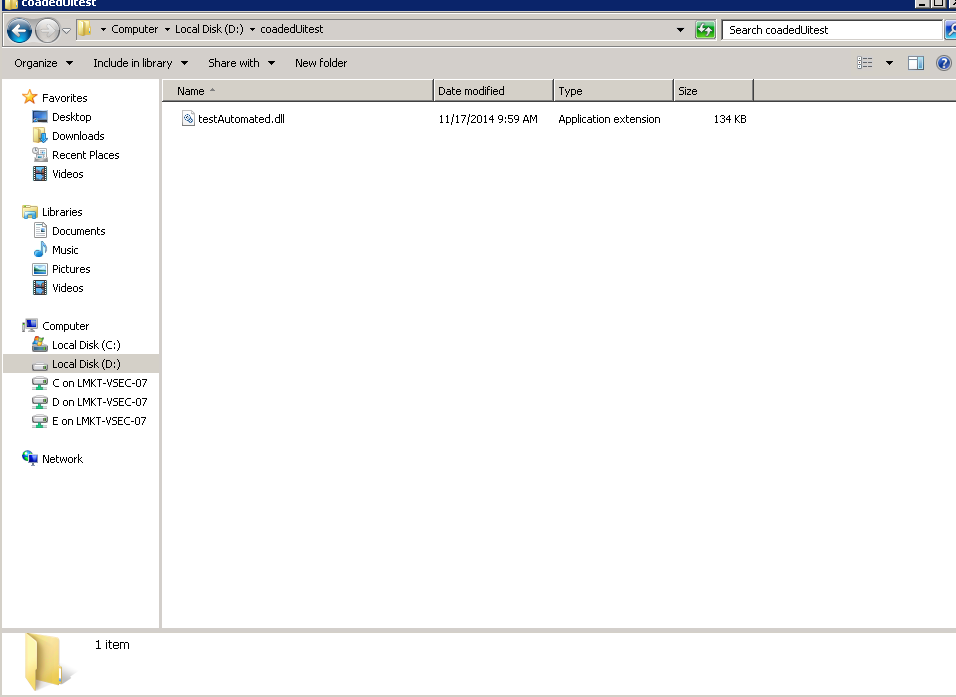
  1. Place this dll on remote machine where you want to schedule your test execution
  1. Place .dll in some directory of remote machine e.g I am placing in D:\coadedUitest


  1. Install Miscosoft Test agent from this link on this machine where you want to execute test . http://www.microsoft.com/en-us/download/details.aspx?id=38186
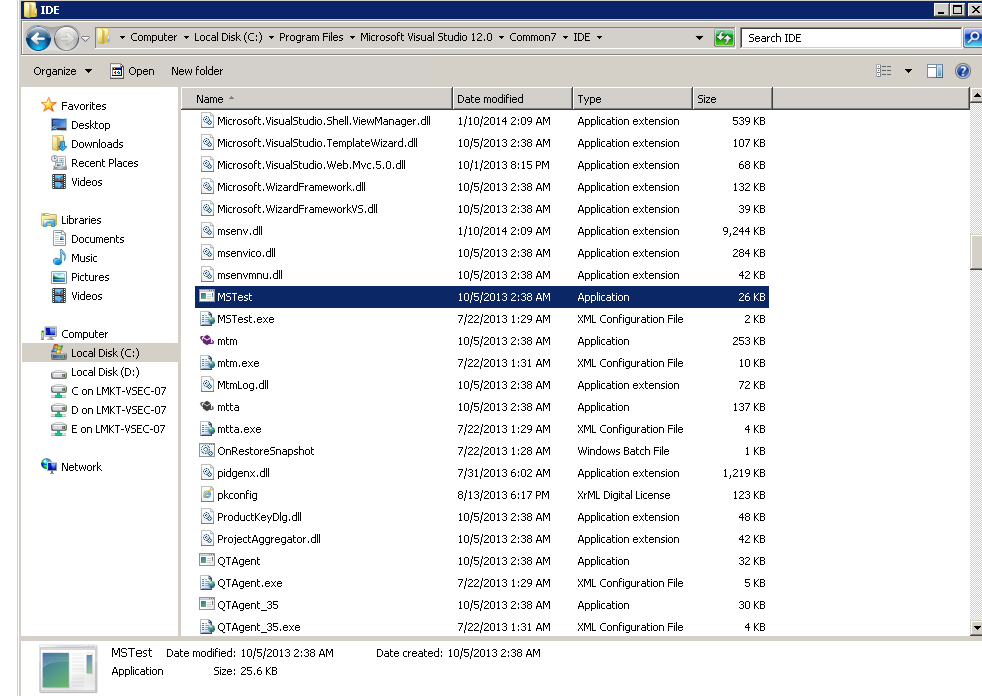
  1. After installing test agent verify MS test is present in location  
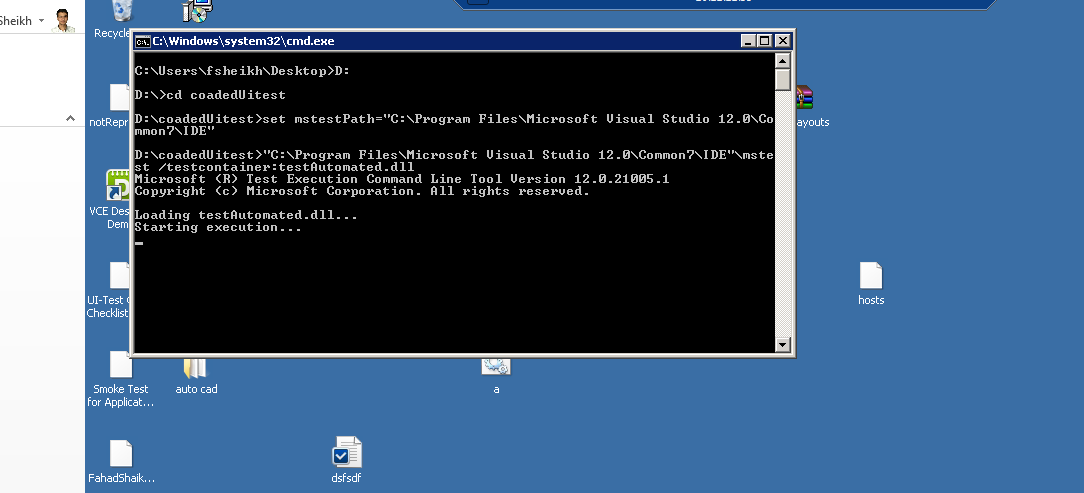
  1. Open note pad and enter following text
D:
cd coadedUitest
set mstestPath="C:\Program Files\Microsoft Visual Studio 12.0\Common7\IDE"
%mstestpath%\mstest /testcontainer:testAutomated.dll  


8. Save it with .bat extension


  1. Open .bat file by double clicking it to verify tests are executed or not
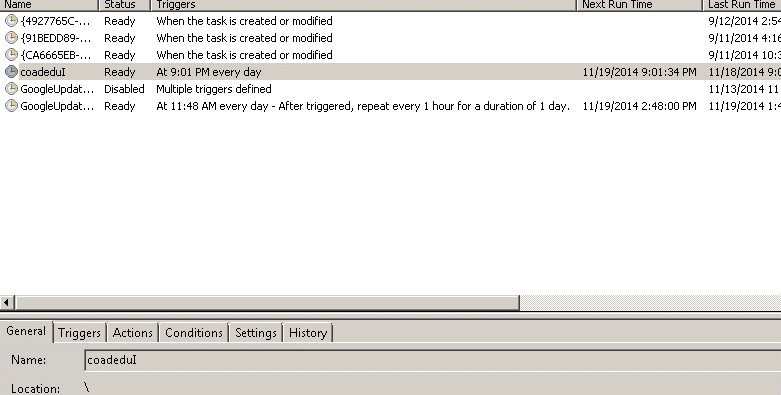
  1. After successful execution open windows task scheduler and create a scheduled task to run this created .bat file.

    Tuesday, 11 November 2014

    Possible Exceptions and their cause in Coded UI


    Here are some of the guidelines to troubleshoot the failure during recording/playback.


    Recording Time Failures


    Possible ExceptionCauseComment
    TechnologyNotSupportedExceptionRecoding on a unsupported technology AppAs mentioned above Winforms/WPF/Web are three different kind of technologies supported by UITest so if user tries to record on some other technology we fail with the following exception.
    ApplicationFromNetworkShareExceptionRecording on a Network share applicationThis occurs when the recording is being done on a network share App.


    Playback time failures

    Playback does two major things in order to perform action on the control search and action on the control. Following are the possible reasons and their exceptions.

    Search Failure


    Following are some of the suggested tips to debug the search failure during playback.

    Possible ExceptionCauseComment
    UITestControlNotFoundExceptionThe control does not exist or search properties are not enough to find the controlUser can use AccExplorer and see whether the search properties and the hierarchy are correct
    UITestControlNotAvailableExceptionThe control does not exist in the app now.If the control has been invalidated or deleted during the playback, the window handle and other properties related to it would be invalid then.

    Action Failure


    Sometime though the search passes but the playback may not be able to do the action on the control. Following may be the possible reason/tips to debug the issue

    Possible ExceptionCauseComment/Possible workarounds
    ActionNotSupportedOnDisabled
    ControlException
    Playback is trying to perform action on a disabled controlThis is thrown when the playback try to do some action on the disabled control/read only controls. Following are some of the cases:
    · SetValue on a read only combobox/text box
    · Click/SetState on buttons/checkboxes
    FailedToLaunchApplicationExceptionWhen the playback fails to launch the AuTVerify whether the LaunchApp was recorded on the original exes or on some other file e.g., sometime if a App launches SPLASH screen before the original AuT LaunchApp is recorded on splash screen, user can work around this in API playback by changing the path
    FailedToPerformActionOnBlocked
    ControlException
    The control exists but not actionableThrown when a control is blocked in this case though the search passes but the required action will not be played back. Following might be some of the causes for this exception
    · The control is not visible in the view port and not scrollable even
    · Control is blocked due to some modal dialog on top of it
    DecodingFailedExceptionMay come in password text boxWhen the decoding fails due to incorrect key value in password encryption.
    PlaybackFailureExceptionDefault fall back exception for uncategorized issuesFor any other failure the playback engine would throw PlaybackFailureException. For example if Get/Set of some property fails for a control playback engine would throw PlaybackFailureException.

    Monday, 10 November 2014

    Search Configurations for the control in CodedUI


    Apart from the control specific properties, some other properties may be required to identify the control, e.g., if the control is nameless or the parent has to be expended before looking for a control e.g, tree item. Following are some of those.

    Search configuration of the control


    We have some predefined search configuration which helps to narrow down the search space (search only in visible controls) or to do perform some prerequisite before actually starting the search (expand parent tree node before searching for the child node). Following are the different search configs:

    SearchConfig ParameterDescription
    AlwaysSearchUITest uses a cache while doing actions on an Application by adding Always Search in the search config user can force UITest to not to use the cached value for the control.
    DisambiguateSearchIf the parent and the controls properties are same there are chances that UITest would start doing action on the parent itself. This config can be used to ask the playback to act on its child rather than the parent itself.
    ExpandWhileSearchingExpand the control before looking for the other control inside it. E.g., TreeView
    NextSiblingSearch in the siblings inside the container. Sometime if the control is nameless we may iterate from the named control inside the same container to reach the control.
    VisibleOnlySearch only in the visible control. It helps to reduce the search space.

    Sunday, 2 November 2014

    Resizing browser window using CodedUI


    How to test your websites responsive UI design with codedUI.
    The main requirement here is that you would be able to check if you can enter values on a specific screen in different browsers in different window sizes.
    So starting the browser in CodedUI is simple, you just use the BrowserWindow class and call the Launch method to start the browser in a reliable way. Starting different browsers (Chrome, firefox) is also possible by just setting theBrowserWindow.CurrentBrowser to a value of “chrome” or “firefox” so that is already solved.
    The main issue is the size of the browser window. For the responsive UI to show, you need to run a test case in e.g. different screen sizes. Unfortunately there is no method on the BrowserWindow class to set the screen size of the browser.
    But there is an easy fix for that.
    The BrowserWIndow class has a property called WindowHandle. We can use this property to call a windows API to resize the window.
    First an extension method if to be defined as below.
        public static class BrowserWindowExtensions
        {
            [DllImport("user32.dll", SetLastError = true)]
            [return: MarshalAs(UnmanagedType.Bool)]
            internal static extern bool SetWindowPos(IntPtr hWnd, IntPtr hwndInsertAfter, int x, int y, int cx, int cy, uint uFlags);
            public static void ResizeWindow(this BrowserWindow control, int width, int height)
            {
                SetWindowPos(control.WindowHandle, (IntPtr)(-1), 0, 0, width, height, 0x0002 | 0x0040);
            }
        }
    then the TestMethod looks as shown below
            [TestMethod]
            public void BrowserResizing()
            {
                //define for Chrome
                BrowserWindow.CurrentBrowser = "Chrome";
                BrowserWindow myb = BrowserWindow.Launch();
                myb.NavigateToUrl(new System.Uri("http://bing.com/"));
                myb.Maximized = true;
                BrowserWindowExtensions.ResizeWindow(myb, 480, 800);
            }
    the same is applicable for IE and Firefox.